On this page
Software Setup
You need two free apps on your computer before you write any code: GitHub Desktop (to save and share your project) and VS Code (to write code in). This page walks you through installing both from scratch, then links you to the Hackatime page so your hours get tracked. If you have never done this before, you are in the right place, follow the steps in order and you will be ready to build.
You MUST use Hackatime for every software project.
Hackatime is how we track the hours you spent coding. Without it, your software project cannot be submitted for review and you will not get credit for the work you did. Set it up on the next page before you start writing any code.
Hackatime only tracks editor time. Art, UI design, music, and other non-coding work for a software project go in a journal entry (or a Lapse timelapse). More on that here.
HC AI and other AI tools are fine for help. They are not fine for dumping a generated project on us. Your submission must be code you understand, with obvious polish, testing, and your own iteration on top. Heavy unpolished AI usage will be rejected. That includes unreviewed generated code, copy-pasted output, and AI-written journals. When in doubt, rewrite it in your own words. Journals must always be written by you, never by AI.
What am I setting up, and why?
Two things, and they work as a pair:
- Git and GitHub save versions of your code and put it online so reviewers can see it. Think of it like a save system for your project, except every save is permanent and you can go back to any previous version whenever you want. GitHub is the website your code lives on, and GitHub Desktop is an app that makes Git easy without touching the command line.
- VS Code is the editor you actually write code in.
You will install GitHub Desktop first, then VS Code, then open your project in both. The rest of this page is just that, one click at a time.
How do I set up Git with GitHub Desktop?
1. Create a GitHub account
If you don't have one yet, sign up at github.com. Pick a username you're happy with, it'll show up on all your projects.
2. Download GitHub Desktop
Go to desktop.github.com and download the app. Install it, then sign in with your GitHub account when it asks.
3. Create a new repository
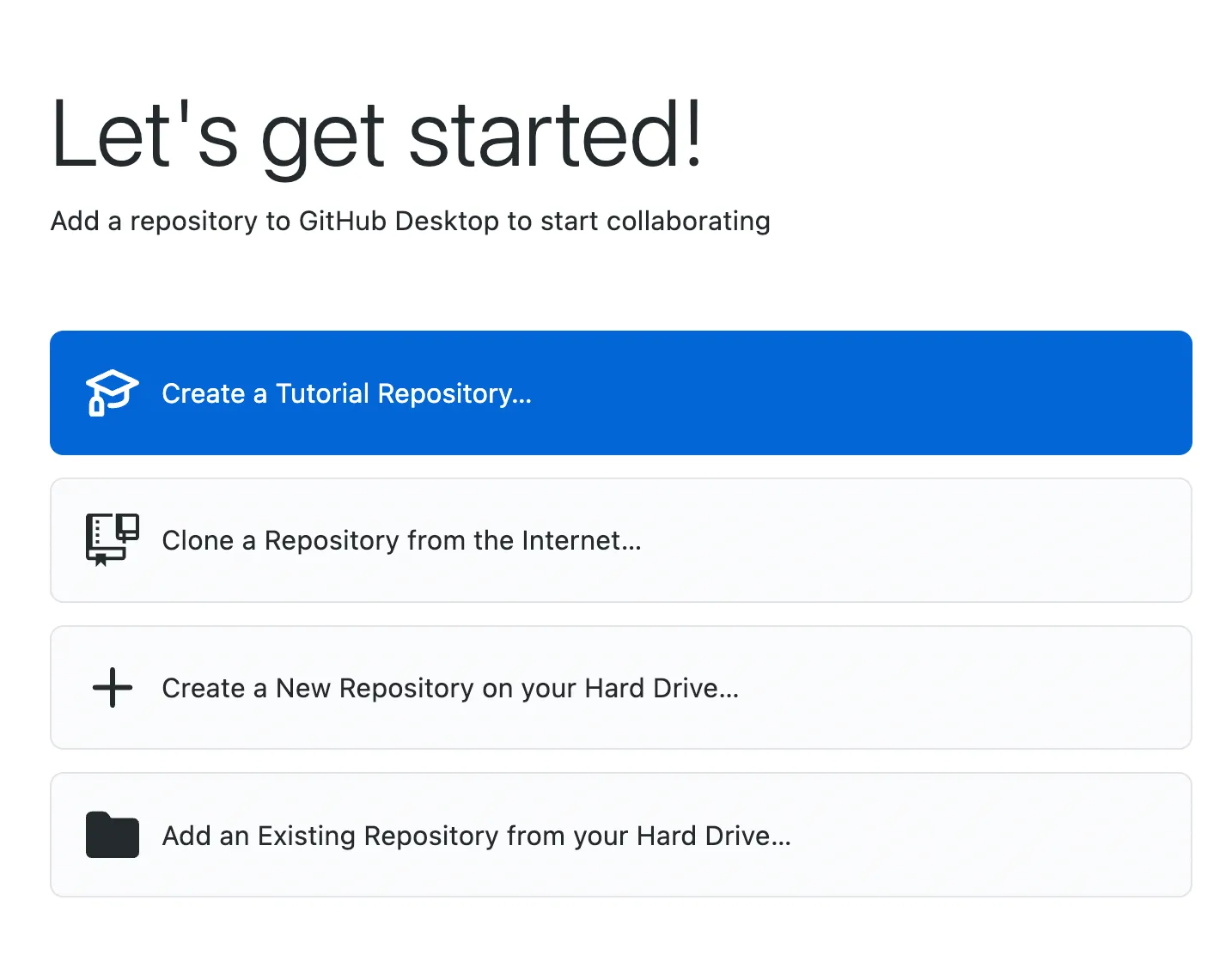
A repository (or "repo") is just a project folder that Git tracks. In GitHub Desktop, click File -> New Repository. Give it a name (your project name works fine), pick where to save it on your computer, and check "Initialize this repository with a README." Click Create Repository.
4. Explore the interface
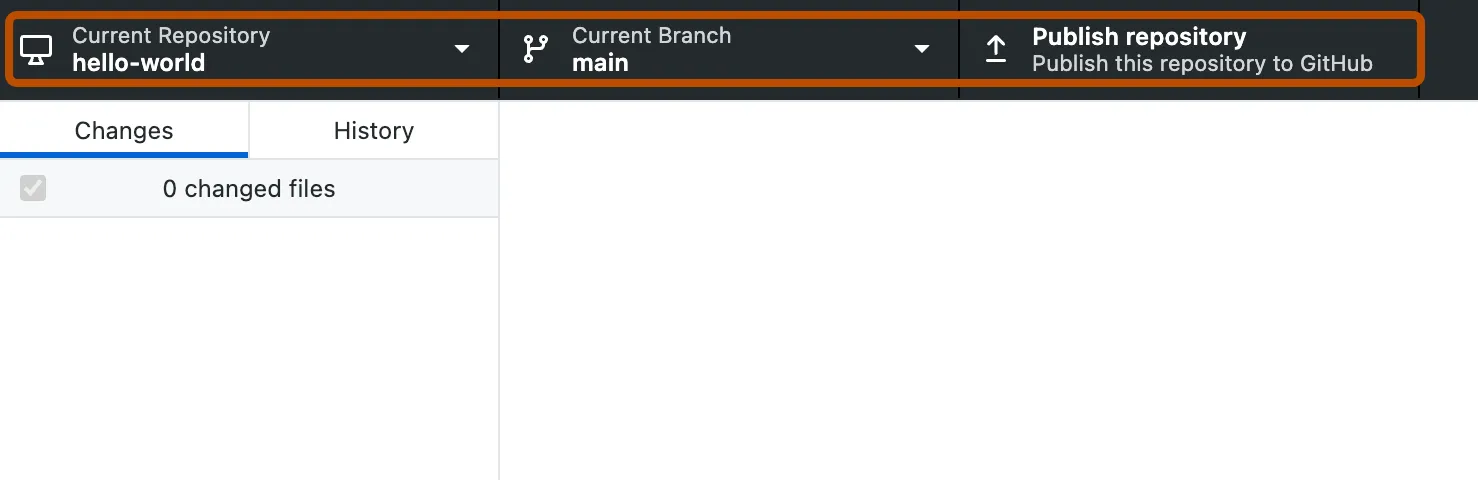
After creating your repo, you'll see the main GitHub Desktop interface. The left side shows your changes, the middle shows file diffs, and the top bar lets you switch between repositories and branches.
How do I install VS Code?
VS Code (Visual Studio Code) is a free code editor made by Microsoft. It's what most people use, and it works on Windows, Mac, and Linux.
1. Download it
Go to code.visualstudio.com and click the big download button. It should detect your operating system automatically. Run the installer when it finishes downloading.
2. Open your repo in VS Code
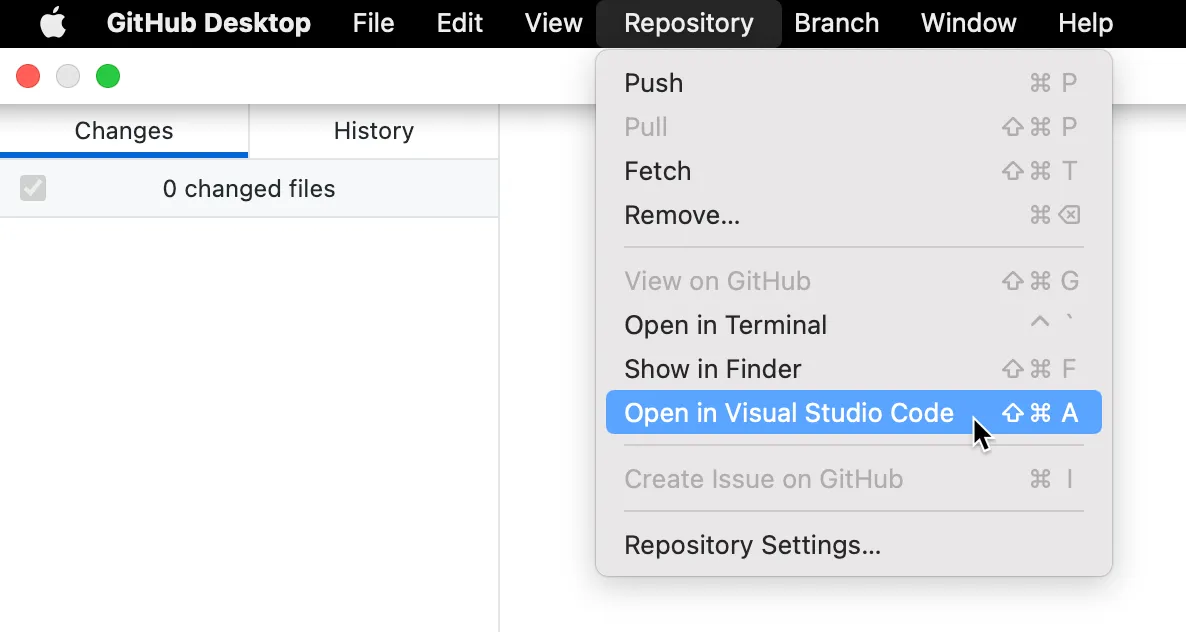
Back in GitHub Desktop, click Repository -> Open in Visual Studio Code (or the "Open in Visual Studio Code" button). This opens the folder you just created directly in VS Code.
3. Get familiar with the layout
On the left you'll see a file explorer showing all the files in your folder. Click any file to open it in the editor. The bottom panel has a built-in terminal, you can open it with `Ctrl+`` (backtick key, top-left of your keyboard). This terminal is the same as your system terminal, just embedded inside VS Code.
4. Install extensions
Click the squares icon on the left sidebar (or press Ctrl+Shift+X) to open the Extensions panel. Search for and install anything relevant to your project. If you're building a website, look for "Live Server" (lets you preview your site in the browser). If you're using Python, grab the "Python" extension.
You'll also want to install the WakaTime extension here if you're working on a software project. That's what connects to Hackatime to track your coding time. See the Hackatime page for details.
How do the two apps work together?
Now that both are installed, here's the loop you'll repeat as you build: write code in VS Code, then save and upload it with GitHub Desktop.
Making commits (saving your work)
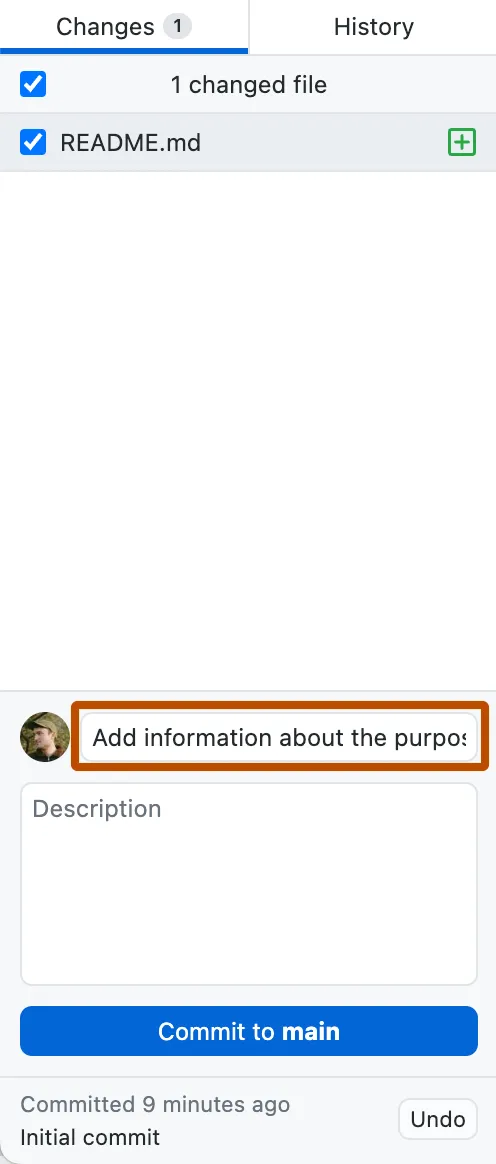
After you've made some changes to your code in VS Code, switch back to GitHub Desktop. You'll see a list of files that changed on the left side. The right side shows exactly what changed in each file, with green lines for additions and red for deletions.
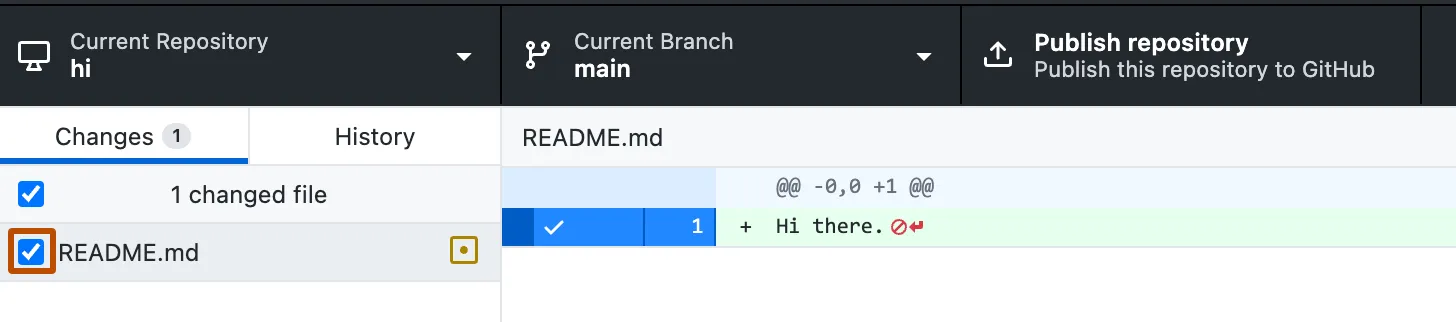
At the bottom left, there's a "Summary" text field. Type a short description of what you changed (like "add homepage layout" or "fix button color") and click Commit to main. That saves a snapshot of your code.
Pushing to GitHub
After committing, click Push origin at the top. This uploads your code to GitHub so it's saved online and reviewers can see it. If it's your first time pushing, it'll ask you to publish the repository first, just click the button and it'll handle everything.

The workflow is: write code in VS Code -> switch to GitHub Desktop -> write a short commit message -> click Commit -> click Push. Do this regularly as you work so your progress is always saved.
Don't save all your work for one giant commit at the end. Commit each small, working change as you go (a few times an hour is healthy). Your commit history is the clearest proof that you built the project yourself, step by step, so a steady stream of real commits is your best protection if a reviewer ever questions your hours. It also means you never lose more than a few minutes of work.
What if I already have a repo on GitHub?
If you already have a repo on GitHub (or someone shared one with you), you can download it with GitHub Desktop. Click File -> Clone Repository, find the repo in the list (or paste the URL), pick where to save it, and click Clone. Then open it in VS Code the same way as before.
See also
- Hackatime , connect the time tracker so your coding hours count
- What is shipping? , how reviews and approvals work
- Journals , how to log non-coding work like art and design
- Still stuck? , where to get help in #macondo-help on Slack